
Instant
Record with a saved preset, let Beam export automatically and paste the finished video file.
Record, stop, paste
Instant applies your chosen editor preset and exports locally as soon as you stop. Beam keeps the source project too, so you can reopen the take in Studio if it needs another edit.
Select Instant in the Recorder. You can also open Quick Snip from the tray or with Alt + Shift + S, then choose Instant in its capture controls.
Select Instant
Choose Instant in the capture controls.
Select a saved preset
Pick an editor preset. Its preview helps you check the look before recording.
Choose the source
Choose Full screen, Region or Window, then check the camera and audio sources.
Record and stop
Start your take. When you stop, leave Beam open while it saves and renders the video.
Paste the result
Wait for Copied to clipboard, then paste into an app that accepts video files. Use Open in editor if you need to make changes.
Reuse a look you have already set up
The editor preset supplies the background, framing, cursor style and export settings. Create or adjust it in Studio, then select it for your Instant capture. MP4 is used unless the preset selects WebM.
Choose Off, 2D, 3D or Loupe for automatic zooms. Generation needs captured clicks. If the video already contains the system cursor, Beam starts with the separate custom cursor overlay disabled.
Wait for the finished file
The status view shows a composed preview, progress and an estimated remaining time. Hover over it to access the available actions. Keep Beam open until rendering finishes.
Automatic exports go into the Instant project’s exports folder, even if you have selected a different folder for manual exports. If rendering fails, Beam shows the error and keeps the source project for recovery.
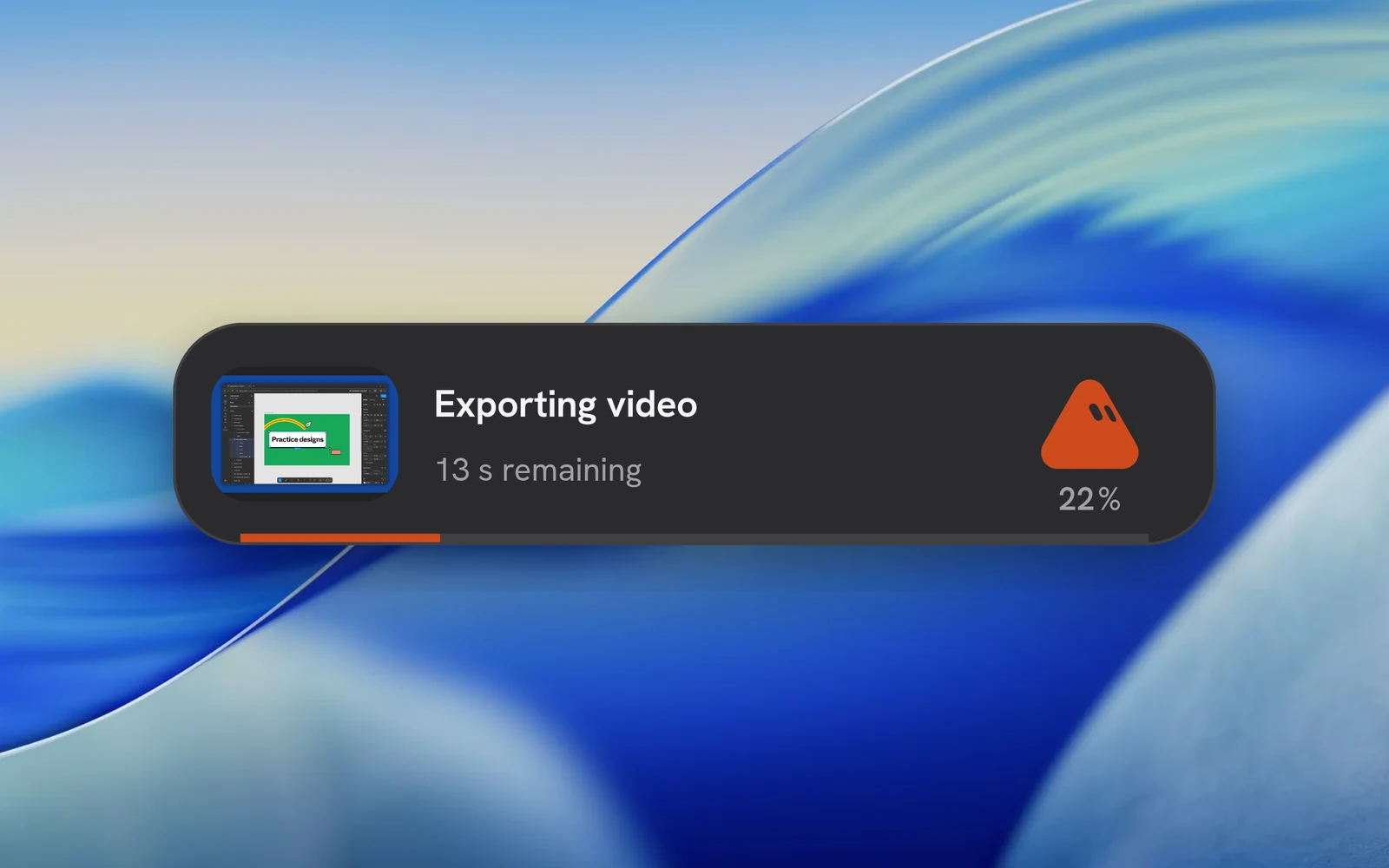
Paste the video into your next app
After a successful export, Beam copies a reference to the video file. Paste into a chat, file manager or another app that accepts file attachments. The recipient app handles any upload; Beam does not create a sharing link.
Keep the file where it is until you paste it. Copying another item replaces the clipboard. The status closes automatically after completion; hovering over it pauses its close countdown.
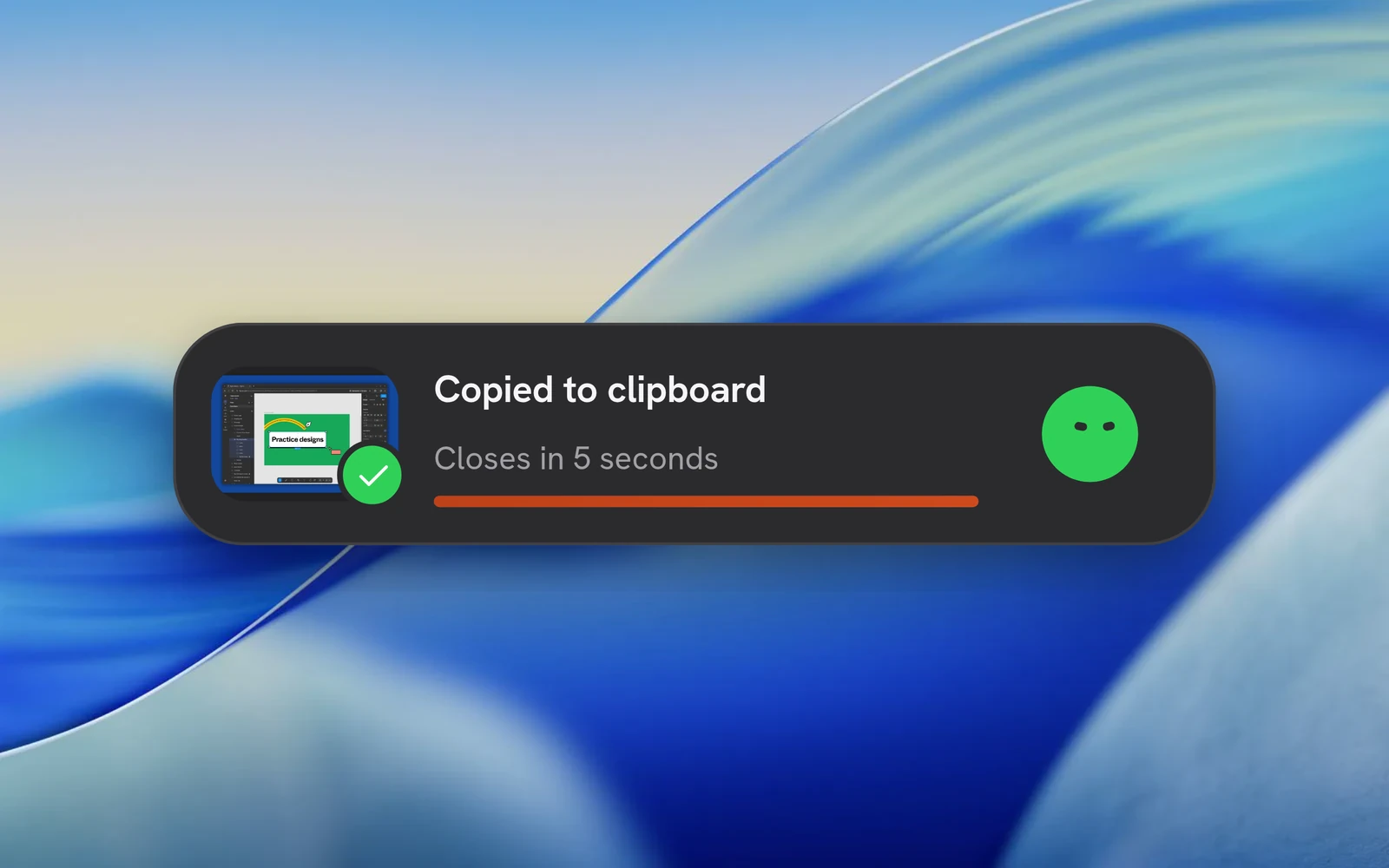
What file copying needs on each system
Linux DEB/RPM packages declare both clipboard tools. With an AppImage or development build, install the one your session uses. A successful copy supports repeated pastes until the clipboard is replaced.
| Platform | File copy |
|---|---|
| macOS | Native file clipboard; the receiving app must accept file references. |
| Windows | Windows PowerShell publishes a file-drop list. Restrictions on PowerShell can prevent copying. |
| Linux / Wayland | wl-copy from wl-clipboard, available in the graphical session. |
| Linux / X11 | xclip, available in the X11 session. |