


Audio
The Audio panel separates composition-wide output from recorded system and microphone roles. Imported audio remains controlled as a selected timeline clip.
Audio panel
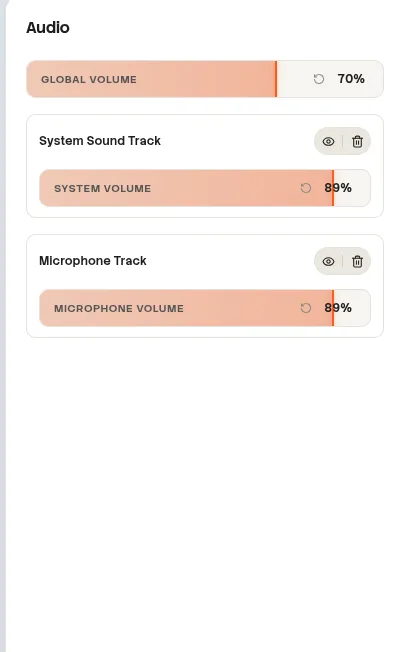
Screenshot pendingAdd the image at:
website/docs/public/screenshots/editor/audio-panel.webpVolume controls
| Control | Range | Initial or default value | Scope |
|---|---|---|---|
| Global Volume | 0%–100% | A newly loaded player starts at 70% | Complete editor playback output. |
| System Volume | 0%–100% | 100% | Every clip assigned to the System role. |
| Microphone Volume | 0%–100% | 100% | Every clip assigned to the Microphone role. |
| Selected audio clip Volume | 0%–200% | 100% | Only the selected system, microphone, or imported audio clip. |
Role controls
| Role | When shown | Actions |
|---|---|---|
| System Sound Track | At least one system-role audio clip exists. | Enable or disable, change role volume, or delete every System clip. |
| Microphone Track | At least one microphone-role audio clip exists. | Enable or disable, change role volume, or delete every Microphone clip. |
| Imported audio | An imported-audio clip exists. | Select the clip on the timeline and use Clip Volume; it has no dedicated role section. |
| No roles | No System or Microphone role exists. | The panel reports that no audio tracks were detected. |
Enable compared with delete
Disabling a role preserves its clips but excludes them from playback and export. Deleting a role removes every clip assigned to that role from the composition.
Role deletion affects multiple clips
Delete System Track and Delete Microphone Track operate on the complete role, not only the clip nearest the playhead.